
Resolution Center overview
App guide · Resolution Center
See customer requests in one place
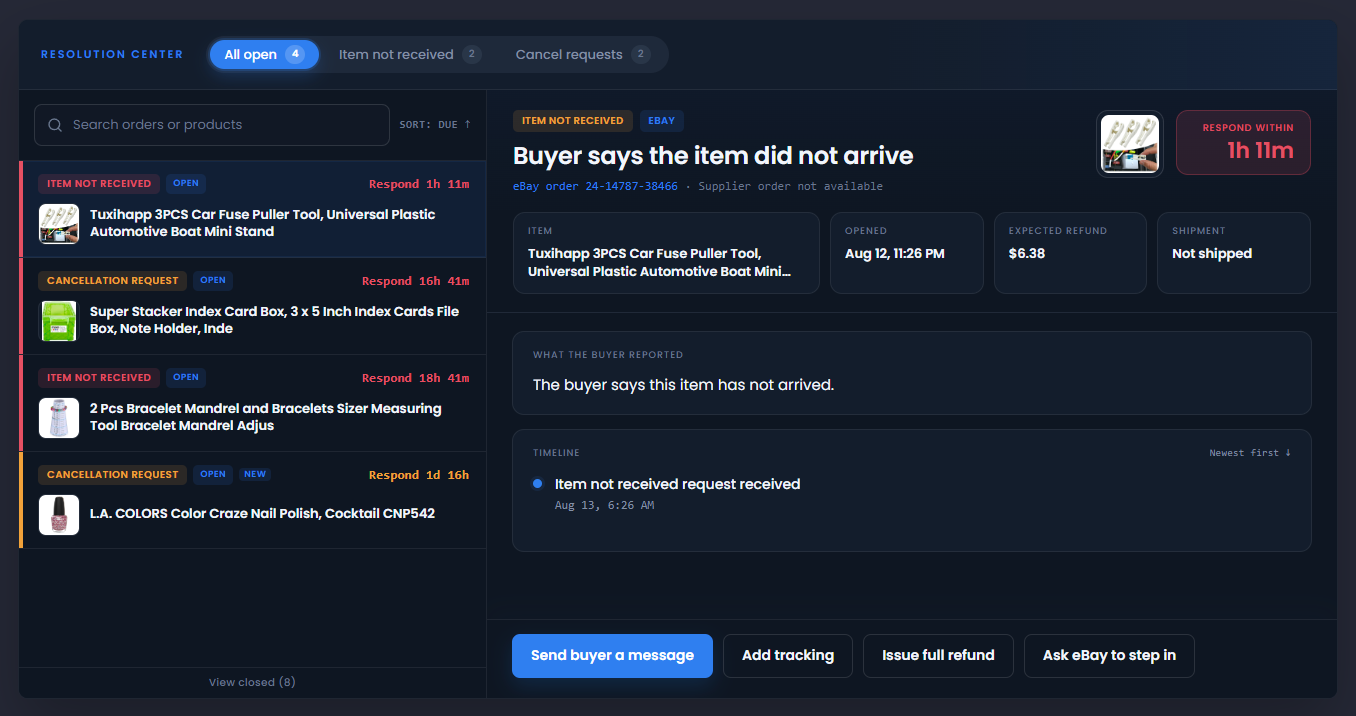
Section titled “See customer requests in one place”The Resolution Center is where you review customer requests that may need a response.
Supported requests include an eBay buyer cancellation request and an item not received request. The type label on each card tells you which process you are reviewing.
Open Resolution Center from the left menu. It appears directly after My Orders.
Choose a request category
Section titled “Choose a request category”| Category | What it shows |
|---|---|
| All open | Every request that is not fully closed, including updates that Dropship Calendar or eBay is checking. |
| Item not received | Open requests where the buyer says a package did not arrive. |
| Cancel requests | Open requests where an eBay buyer asked to cancel an order. |
Select View closed below the request list when you need completed requests.
Understand request labels
Section titled “Understand request labels”| Label | What it means |
|---|---|
| Open | The request is open and you can choose what happens next. |
| Closed | The request no longer needs an action. |
| New | You have not opened the request yet. Opening it removes New, but does not remove Needs attention. |
The number beside Resolution Center in the left menu is the number of requests that need attention. It is not the number of unread requests.
Find and review a request
Section titled “Find and review a request”- Open Resolution Center.
- Choose All open, Item not received, or Cancel requests. Select View closed below the request list when you need completed requests.
- Search by the eBay order number or product name when needed.
- Select a request.
- Read the buyer’s reason, response deadline, order information, and timeline.
- If the request is open, use the actions shown for that request. Cancellation requests can be accepted or declined. Item not received requests can let you message the buyer, add tracking, issue a full refund, or ask eBay to step in.
The request timeline explains what Dropship Calendar has seen and what action was completed.
Create Aquiline tracking is not shown for every request. When the order is eligible but Aquiline is turned off or you do not have a credit, the button is unavailable. Hover over or focus the button to see what must be corrected.
Open a request from My Orders
Section titled “Open a request from My Orders”An affected order in My Orders shows a customer-request link. Select it to open the same request in Resolution Center. If the order has more than one request, choose View requests.
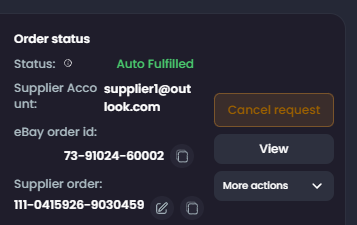
The Dashboard also shows a small notice when at least one customer request needs attention. The notice is hidden when there is nothing to review.
Why a status can change later
Section titled “Why a status can change later”Dropship Calendar checks eBay regularly for changes to recent customer requests. This keeps the status current when a buyer, seller, or eBay changes a request outside Dropship Calendar.
If tracking was added directly on eBay or by another tracking service, the request may stay open in Dropship Calendar until the next eBay check. You do not need to repeat an action while an update is being checked.
Share information safely
Section titled “Share information safely”If you contact support, share the eBay order number and the words shown in Resolution Center.
Do not share your eBay password, access token, full payment information, or a buyer’s private address in a screenshot.