
Recover from a canceled Amazon order
Operator playbook · Fulfillment and account recovery
An Amazon cancellation does not cancel the customer’s eBay order. Pause new automatic purchases, resolve the cause, and place a replacement Amazon order so the eBay order can still be fulfilled.
Amazon may cancel an order when it needs to verify your identity or when a card or bank one-time passcode (OTP) does not complete successfully. It may also cancel for another account, payment, or product-specific reason.
Always begin with Amazon’s cancellation email. It tells you the exact reason and the action Amazon expects you to take.
1. Confirm the order was canceled
Section titled “1. Confirm the order was canceled”Open Amazon’s cancellation email and check the order in Your Orders. Make sure the original order is clearly marked as canceled before placing it again. A temporary card authorization may still appear even when the order was canceled.
Do not use Force Retry without first understanding why the order failed. Retrying immediately can result in another cancellation.
2. Pause new automatic purchases
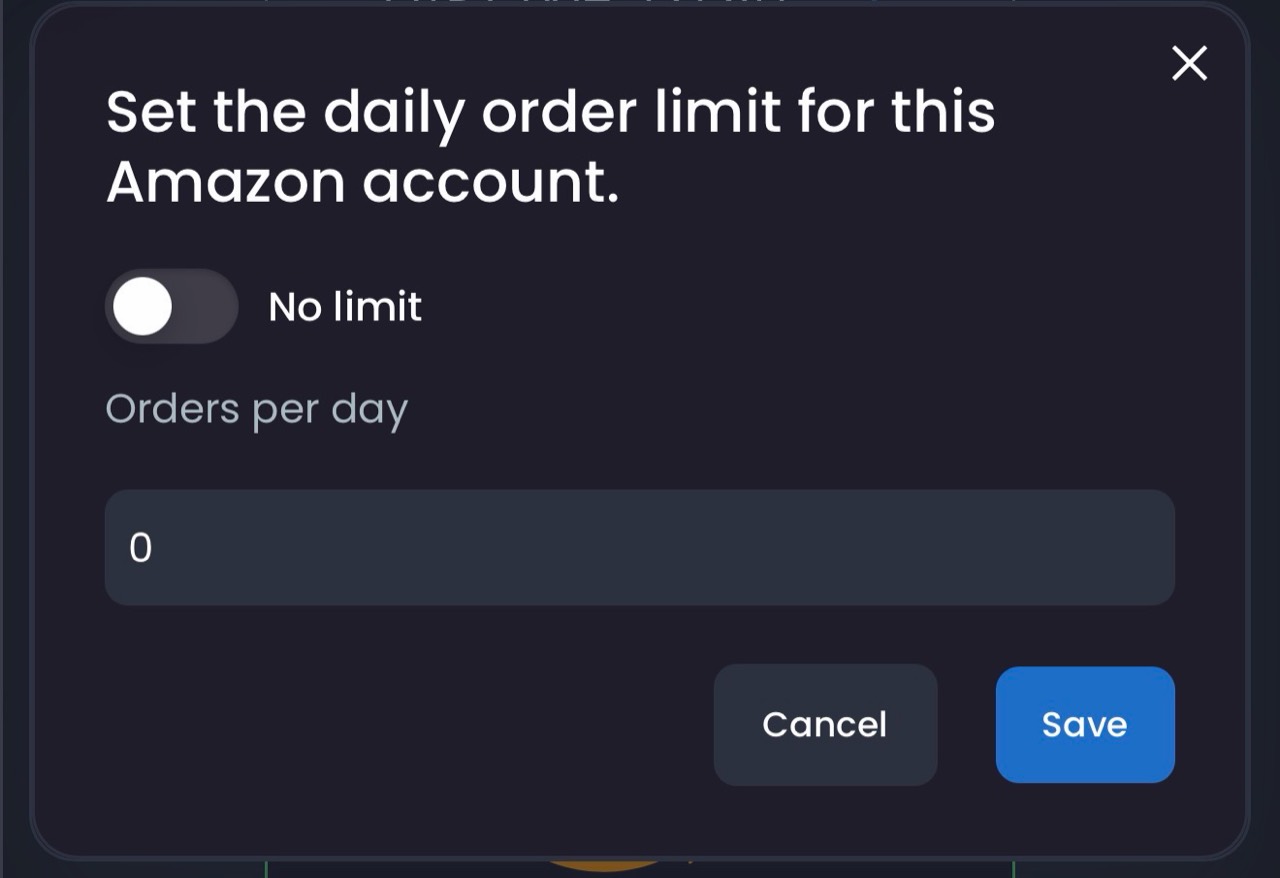
Section titled “2. Pause new automatic purchases”While you resolve the issue, set the affected Amazon account’s daily order limit to 0:
- Open Settings → Auto Ordering.
- Find the affected Amazon account and select Set Limit.
- Turn off No limit, enter 0 under Orders per day, and save.
This prevents that account from placing new orders, but keeps the account active so Dropship Calendar can continue fetching tracking for existing orders. Any new eBay orders waiting for fulfillment will remain in My Orders, so continue monitoring them.
3. If Amazon requests identity verification
Section titled “3. If Amazon requests identity verification”Follow the instructions in Amazon’s email and submit the requested ID only through Amazon’s secure verification process. Never send identity documents to Dropship Calendar support or upload them anywhere outside Amazon’s instructions.
Allow up to 3 business days for verification, or follow the timeframe Amazon provides. Keep the daily order limit at 0 while verification is pending. Once Amazon confirms that verification is complete, use the gradual restart steps below.
4. If the card, bank, or OTP caused the cancellation
Section titled “4. If the card, bank, or OTP caused the cancellation”Check that the payment method and billing details are correct. Complete any OTP or bank approval prompt, and contact the bank if it continues declining or canceling Amazon purchases.
Keep the daily order limit at 0, then manually place 5–10 Amazon orders across 3 days. Spread the orders across those days instead of placing them all at once. Complete every verification prompt and confirm that each order remains active.
This gives the card and bank a short history of successful Amazon purchases. It often reduces bank-related cancellations, but it cannot guarantee that the bank or Amazon will approve every future order.
5. Connect each replacement Amazon order
Section titled “5. Connect each replacement Amazon order”After confirming that the original Amazon order was canceled:
- Place the replacement order manually on Amazon.
- Open the matching eBay order in My Orders.
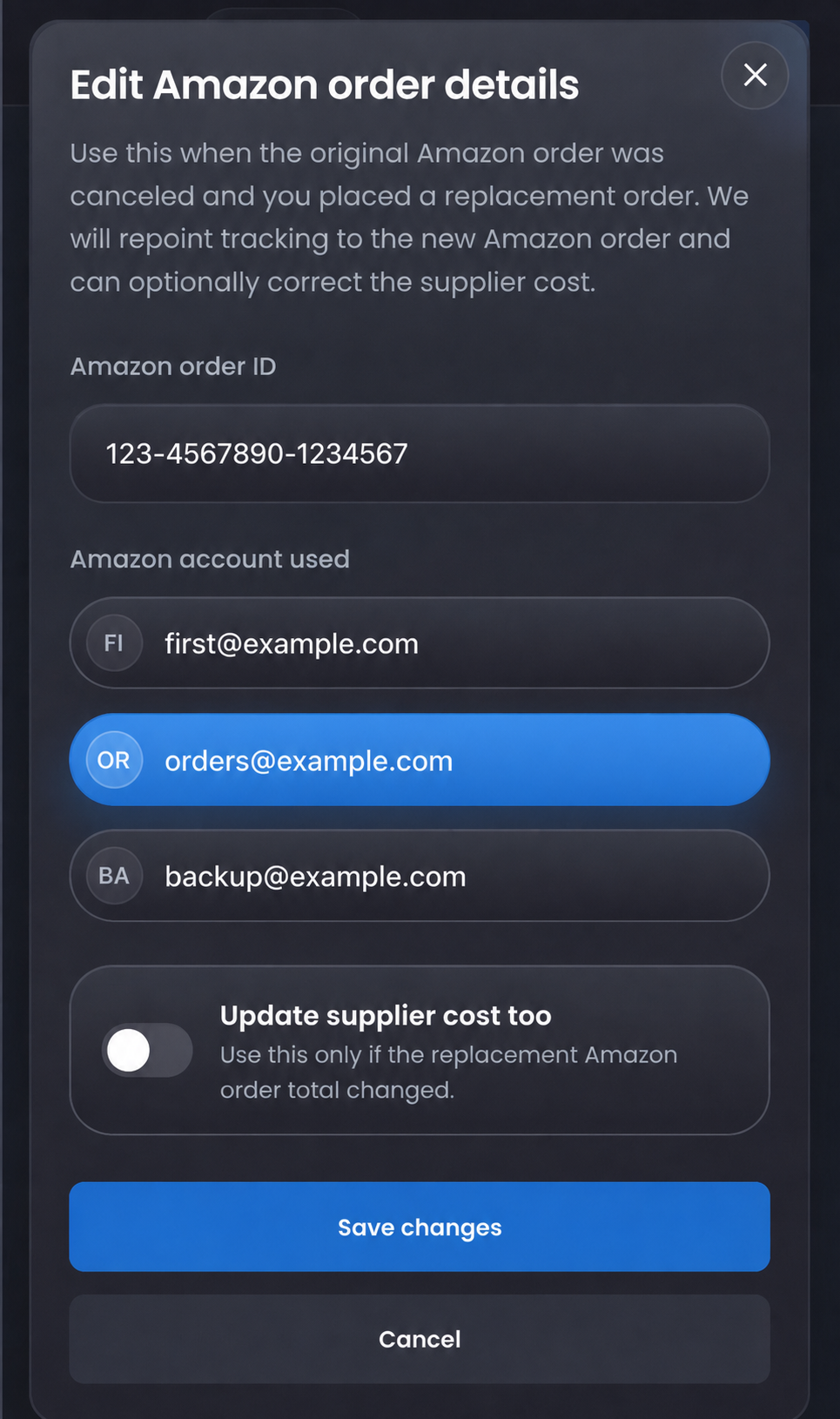
- Select the pencil Edit Amazon order details icon on the order card.
- Enter the new Amazon order ID and select the Amazon account used for the replacement.
- If the replacement total changed, enable Update supplier cost too and enter the new cost.
- Select Save changes.
Dropship Calendar clears the old tracking connection and begins checking the replacement Amazon order for tracking.
If the edit icon is not available because the original purchase was never recorded as fulfilled, use the manual fulfillment action on the order instead.
6. Resume Auto Ordering gradually
Section titled “6. Resume Auto Ordering gradually”After identity verification is complete, or after successfully placing the manual bank-warming orders, increase the affected account’s daily limit in stages:
- Set the daily limit to 1 and let the next eligible order process automatically.
- Confirm in Amazon Your Orders that the order remains active and no cancellation email arrives.
- Raise the daily limit to 3 and confirm those orders remain active.
- Raise the daily limit to 5 and confirm again.
- When orders are processing normally, enable No limit to remove the daily limit.
Do not move to the next stage until the current orders remain active. If another cancellation occurs, return the limit to 0, check Amazon’s email for the reason, and resolve it before trying again.
Important reminders
Section titled “Important reminders”- Setting the daily limit to 0 pauses new purchases; enabling No limit does not.
- A limit of 0 does not fulfill waiting eBay orders. Continue monitoring My Orders.
- Do not place a replacement until Amazon clearly shows that the original order was canceled.
- Enter the correct replacement order ID and Amazon account so tracking is fetched from the right purchase.
For the underlying controls, see Set up Auto Ordering and Use My Orders.