
Scan eBay stores
An eBay store is the starting point for Item Finder. Add a store to scan its eBay listings and find the matching supplier products behind them.
Add an eBay store
Section titled “Add an eBay store”-
Open Item Finder.
-
Select Add shops.
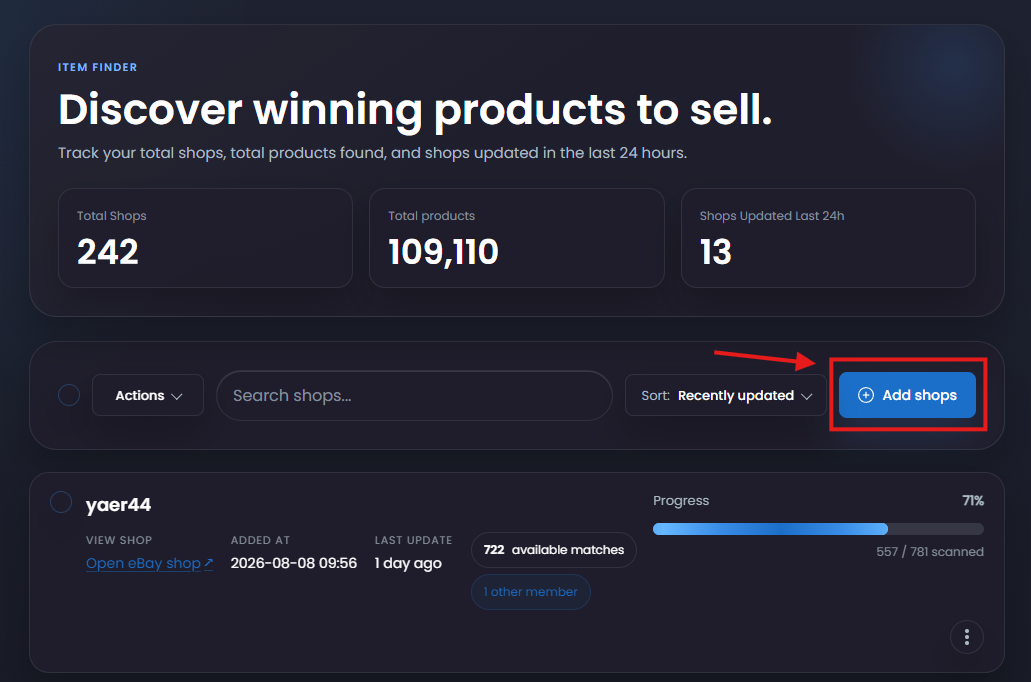
-
Enter one or more eBay seller IDs, one per line. The seller ID is the store’s username on eBay.
-
Select Add shops. You can add up to 30 stores at a time.
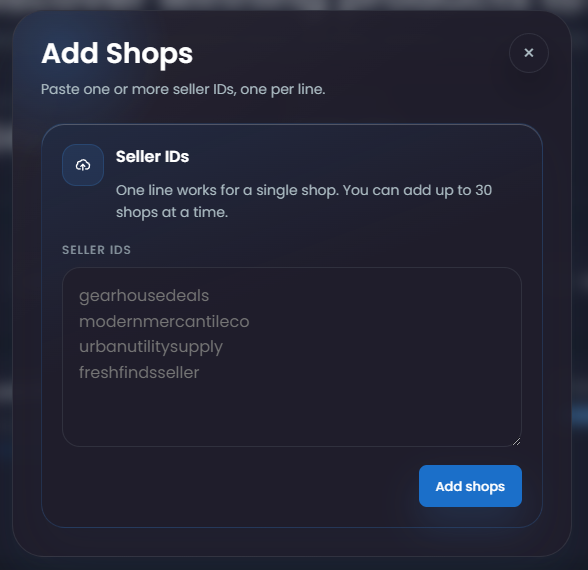
-
The stores appear in Item Finder and begin scanning.
If the eBay store was previously added to Dropship Calendar, it can become available in your Item Finder without repeating all of the initial discovery work.
Refresh an eBay store
Section titled “Refresh an eBay store”Refresh a store when you want to find products it has sold since the previous scan or update the information for its existing matched products.
- Find the eBay store in Item Finder.
- Open its three-dot menu.
- Select Refresh.
- Let the scan finish, then open the store to review its updated products.
Each store can be refreshed once every 24 hours. Refresh may be unavailable while another scan is running.
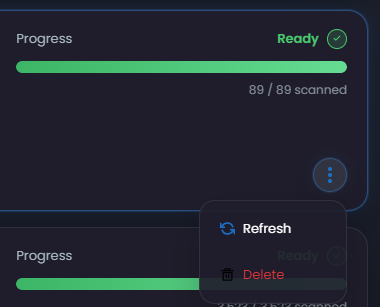
Scan states
Section titled “Scan states”| State | Meaning | Safest action |
|---|---|---|
| Queued | The scan is waiting to begin | Wait for the scan to start |
| Scanning | Item Finder is scanning the store and matching products | Let the current scan finish |
| Ready | The matched products are ready to review | Open the store and review its products |
| Needs scan | The store has not been scanned yet | Open the three-dot menu and select Refresh |
Remove an eBay store
Section titled “Remove an eBay store”- Find the eBay store in Item Finder.
- Open its three-dot menu.
- Select Delete.
- Confirm the removal.
Deleting an eBay store removes it from Item Finder. It does not remove products already in Import List or My Products.
If you add the same eBay store again later, it becomes available in Item Finder again.
Troubleshooting
Section titled “Troubleshooting”The eBay store has no products
Section titled “The eBay store has no products”Confirm the seller identifier, wait for the scan to finish, clear overly strict filters, and verify that the eBay store currently has products available.
The seller ID is not valid
Section titled “The seller ID is not valid”Check that the seller ID matches the store’s eBay username. If Item Finder could not validate a correct seller ID, try again later.
Progress appears stuck
Section titled “Progress appears stuck”Refresh the page once. If the same run remains unchanged for an unusually long period, capture the eBay store name, run time, and sanitized status and contact support.
A previously visible product disappeared
Section titled “A previously visible product disappeared”The product may have become ineligible, already present, blocked, VERO, restricted, or unready after new source data. Review Why a product may be unavailable.